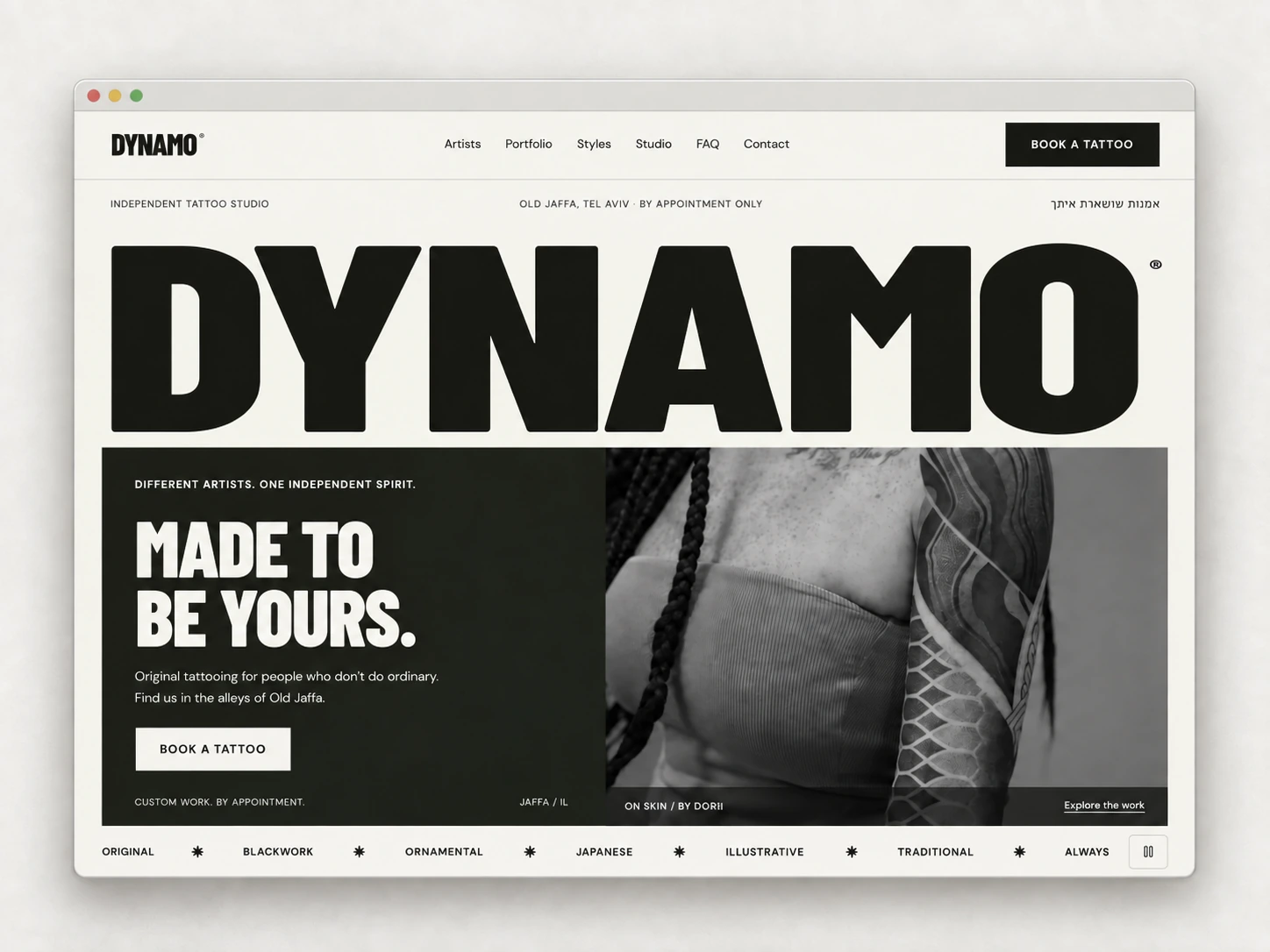
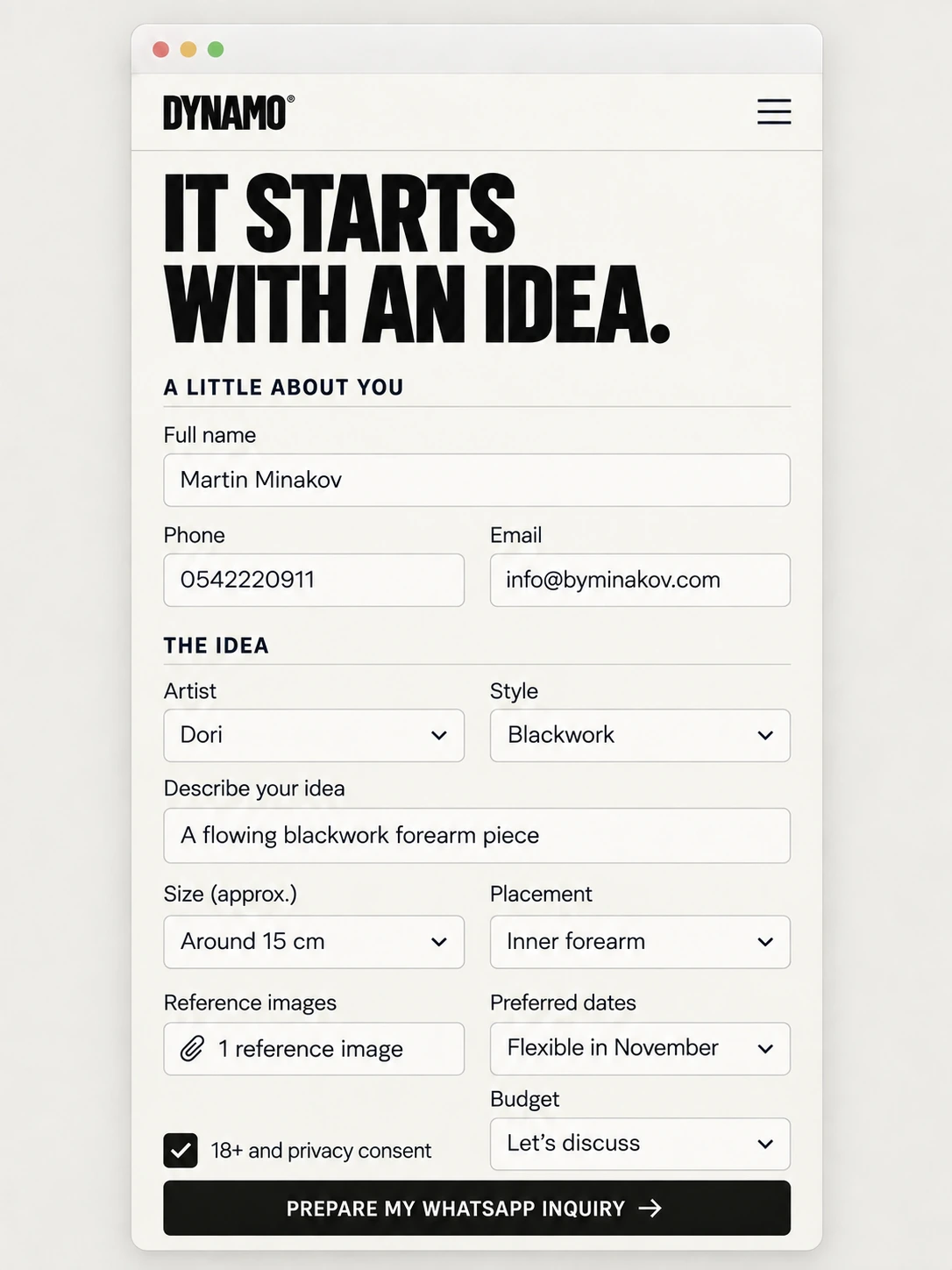
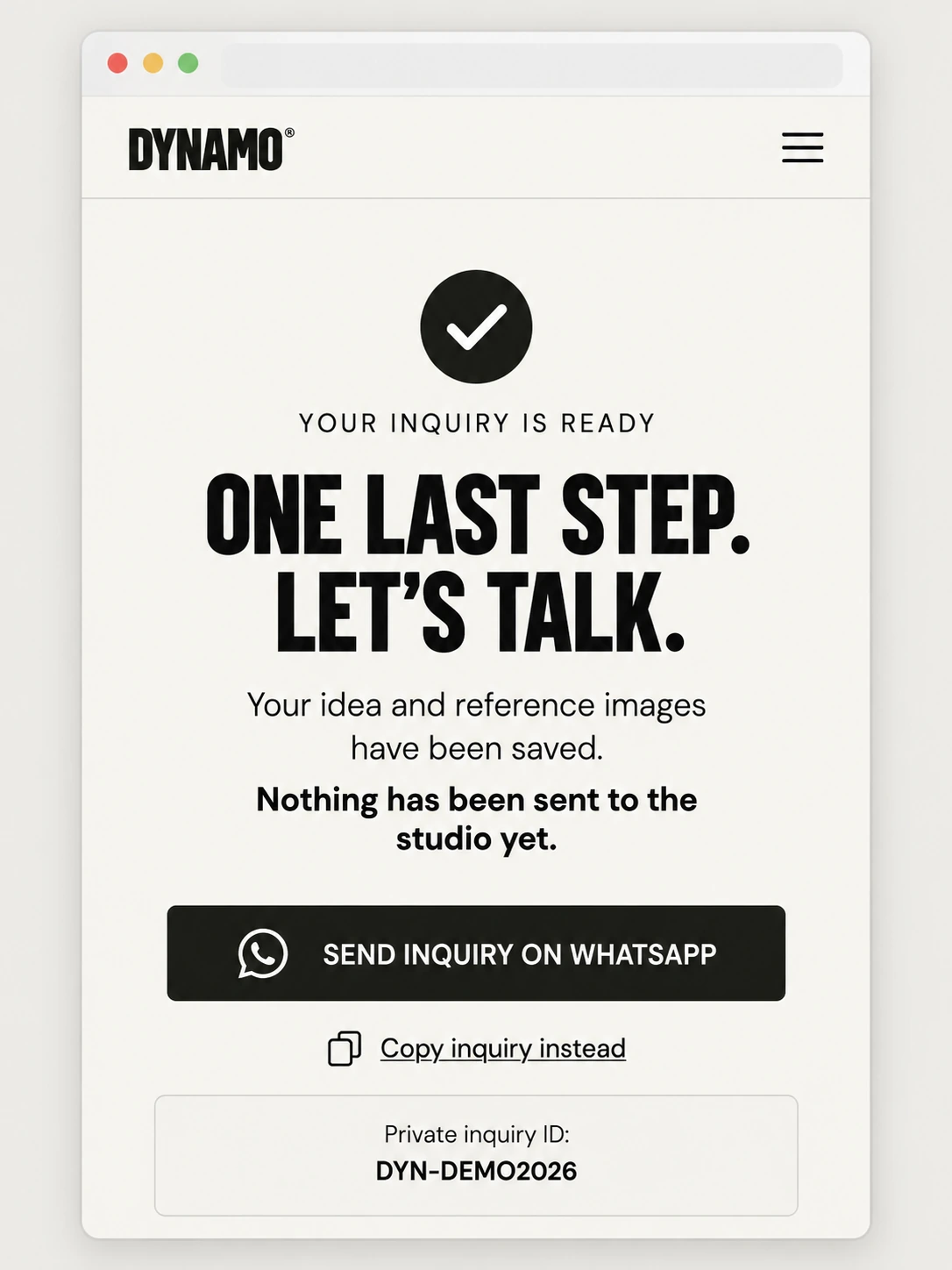
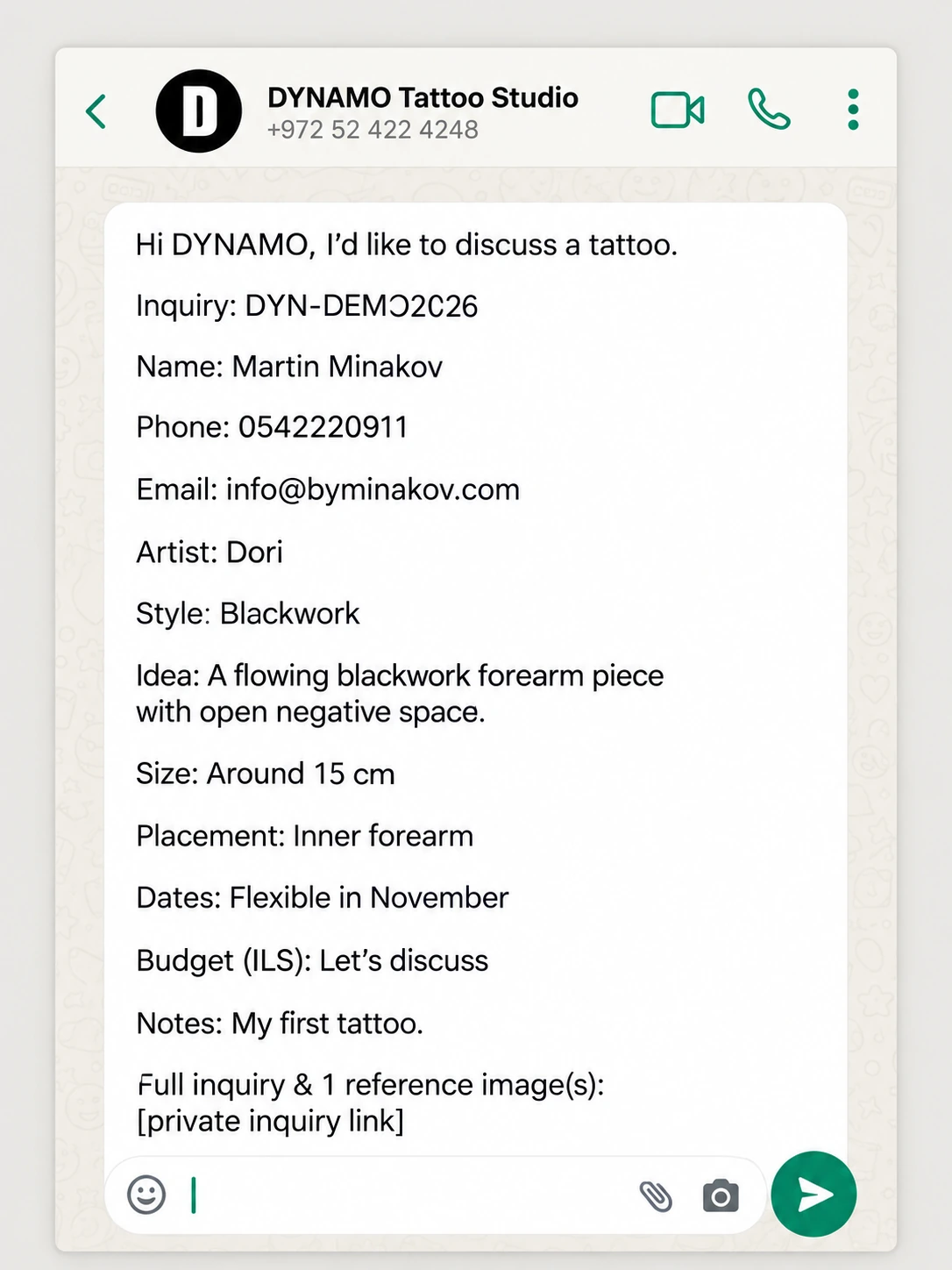
Supplied interface illustrations, using a demonstration inquiry. Some controls are simplified for presentation.
From here, a person.
The studio takes it personally. Creative direction, pricing, dates, and appointment confirmation stay in the conversation.
01.CUnder the surface
Every small step has a reason.
Six chapters, four interface views, one continuous journey. The form stays on a single page. Here’s how the graphics, interactions, and code work together.
01
Give the idea a shape.
The single-page inquiry form
A visitor might know the artist, the style, or only the feeling they’re after. The form makes room for all three.
What the visitor does
They arrive through “Book a tattoo,” or from an artist, style, or portfolio page. Supported artist and style selections can carry into the form, so a useful decision doesn’t have to be made twice.
Three numbered groups move from familiar contact details to the creative idea, then to practical context. “Help me choose,” “Let’s figure it out,” and “Let’s discuss” treat uncertainty as a useful starting point.
Why it looks this way
Large, tightly composed Barlow Condensed headings carry DYNAMO’s character. DM Sans does the quieter work: labels, guidance, and body text. Ivory surfaces, dark text, fine dividers, and space between groups establish hierarchy without enclosing everything in a box.
On desktop, suitable fields use two columns alongside a sticky explanation of what happens next. On smaller screens, the fields use one column. Asterisks distinguish required information.
Information architecture / One page, three groups
01 — About youFull namePhoneEmail
02 — The ideaArtist & styleDescriptionSize & placementReference images
03 — Practical detailsPreferred datesBudget in ILSAdditional notes
How it is built
The React form accepts supported artist and style values through URL parameters. Structured selections sit beside open text because a tattoo idea cannot be reduced to a set of categories. The description is required and needs at least ten characters; approximate size, placement, and preferred dates are free-text fields.
A preference is not a reservation. Dates give the studio context; they do not check availability. This is one organized form, not a multi-page wizard. Some supplied illustrations simplify free-text inputs to look like dropdowns.
02
Add what words can’t quite say.
References & consent / Within the form
Reference images sit beside the written idea, so visual context stays part of the same brief.
What the visitor does
They can select up to five optional reference images. Each selected file is listed with its filename, size, and a removal control. The set stays visible and editable before the inquiry is prepared.
The uploader asks visitors not to include intimate images or documents. A consent checkbox asks them to confirm they are at least 18 and agree to creating a private inquiry link after reviewing the privacy information.
Why it looks this way
A dashed border and pale gray-green background distinguish the uploader as a place to select or drop images. It is easy to locate without competing with the main action.
Showing files individually makes the choice tangible: a visitor can check what they are about to share and remove a reference that no longer belongs. Consent remains within the same context as that sharing decision.
Reference limits / JPG · PNG · WebP
5images at most
5 MBper image
20 MBcombined total
How it is built
The selected files travel with the text fields in the form submission. The server enforces both individual and combined size limits and checks actual image signatures against the declared types. File extensions alone are not the final authority.
Consent is a self-declaration. It is not an age or identity check. The references are saved with the inquiry; they are not automatically attached as media in WhatsApp.
03
Make “ready” mean something.
Validation, storage & retries
“Prepare my WhatsApp inquiry” starts a real saving process. The interface only announces success after the brief and its references are ready.
What the visitor experiences
The action changes to “Preparing your inquiry…” and relevant controls are temporarily disabled. Validation errors can be corrected; a failed saving attempt keeps the entered information in the currently loaded form for another try.
Visible labels, appropriate fieldsets, and focus states support navigation. Status or alert semantics announce changes, and confirmation or error areas receive focus when they appear. A change of color is never the only signal.
What happens behind it
The React interface combines browser validation with a shared Zod schema. It checks required contact information, email format, supported phone characters, the ten-character minimum description, and recognized artist, style, and budget values.
The fields and files are packaged as multipart form data. The server validates the request again rather than relying on the browser’s decision.
Explanatory diagram / From submission to readiness
1. Form + filesOne multipart request
2. ValidateBrowser, then server
3. StoreState: uploading
4. ReadyAfter uploads succeed
Checks on the server
Request origin and overall request size.
Individual and aggregate image limits, plus actual image signatures.
Inquiry values, a hidden honeypot, and a submission limit based on a hashed connection identifier.
Storage / Different material, connected by metadata
A request ID is created when the form mounts and reused if the visitor retries. That lets the server recognize an inquiry that may already have been created during an earlier attempt, instead of blindly creating another record.
The record begins in an uploading state and becomes ready after its associated uploads succeed. If the process fails partway through, the server attempts to clean up incomplete records and files.
Retry continuity, not persistent autosave. Keeping information in the current form does not promise recovery after closing the page. Cleanup is attempted; the system does not claim guaranteed exactly-once delivery.
04
Saved. Still yours to send.
The confirmation screen
The most important sentence on this screen is also the plainest: “Nothing has been sent to the studio yet.”
What the visitor sees
“Your inquiry is ready” confirms the completed save. “One last step. Let’s talk.” introduces the next action. The visitor can open WhatsApp with the prepared message or choose “Copy inquiry instead.”
The inquiry reference helps identify the brief. The confirmation explains the private link’s 30-day availability and separates creating an inquiry from confirming an appointment.
Why it looks this way
A checkmark represents the completed saving operation. The documented interface uses a muted green-gray confirmation panel within the existing editorial palette.
The dark filled WhatsApp action receives primary emphasis; copying is a quieter text alternative. The hierarchy makes the next step obvious while leaving the visitor in control.
Two different states / A human action between them
Website: savedThe brief and images are ready.
Visitor: opens WhatsAppThe prepared draft opens for review.
WhatsApp: unsentSending is a separate action.
Alternative: “Copy inquiry instead” copies the prepared text without opening WhatsApp.
Two identifiers, two jobs
Each inquiry receives a readable reference beginning DYN- and a separate private URL with a long random token. The reference is a convenient identifier for people. The token is what permits access to the private page. A reference by itself is not an access credential.
Ready means saved. It does not mean the studio has been contacted, a date has been reserved, a payment has been taken, or an appointment has been confirmed.
05
A considered handoff.
The prepared WhatsApp message
The website does the organizing. The visitor keeps the final word on sending.
What the visitor does
Continuing opens WhatsApp with a draft addressed to DYNAMO. It begins, “Hi DYNAMO, I’d like to discuss a tattoo.” The visitor can review the message before choosing whether to tap Send.
The draft collects the reference, contact details, artist, style, idea, size, placement, dates, budget in ILS, and notes. The private link connects those words to the full saved brief and its reference images.
How the message is designed
Clear labels and blank lines make a detailed request easier to scan. Empty optional fields are omitted, so unused questions do not become empty lines in the conversation.
The supplied illustration shows an unsent draft. It deliberately has no delivery or read receipts. The send control belongs to WhatsApp, not the portfolio or the studio website.
The handoff / Sending requires the visitor
1. Website preparesValidated text + private link
2. Visitor reviewsThe draft opens in WhatsApp
3. Visitor taps SendThe message can then reach DYNAMO
How it is built
The website assembles a message from the validated fields and URL-encodes it into a WhatsApp click-to-chat link addressed to the studio. It is a prepared link, not an automatic message through the WhatsApp Business API.
Reference images are reached through the private URL; they are not attached as WhatsApp media. Some non-default budget choices are serialized as identifiers such as 1000-2500, so the system does not universally convert every value into polished currency text.
The website cannot confirm delivery. It receives no WhatsApp delivery receipt and does not know whether the visitor eventually sends the draft.
06
The whole idea. Then, a person.
The private brief & personal follow-up
The studio gets one coherent place to understand the request, with the words and the visual references kept together.
What the studio sees
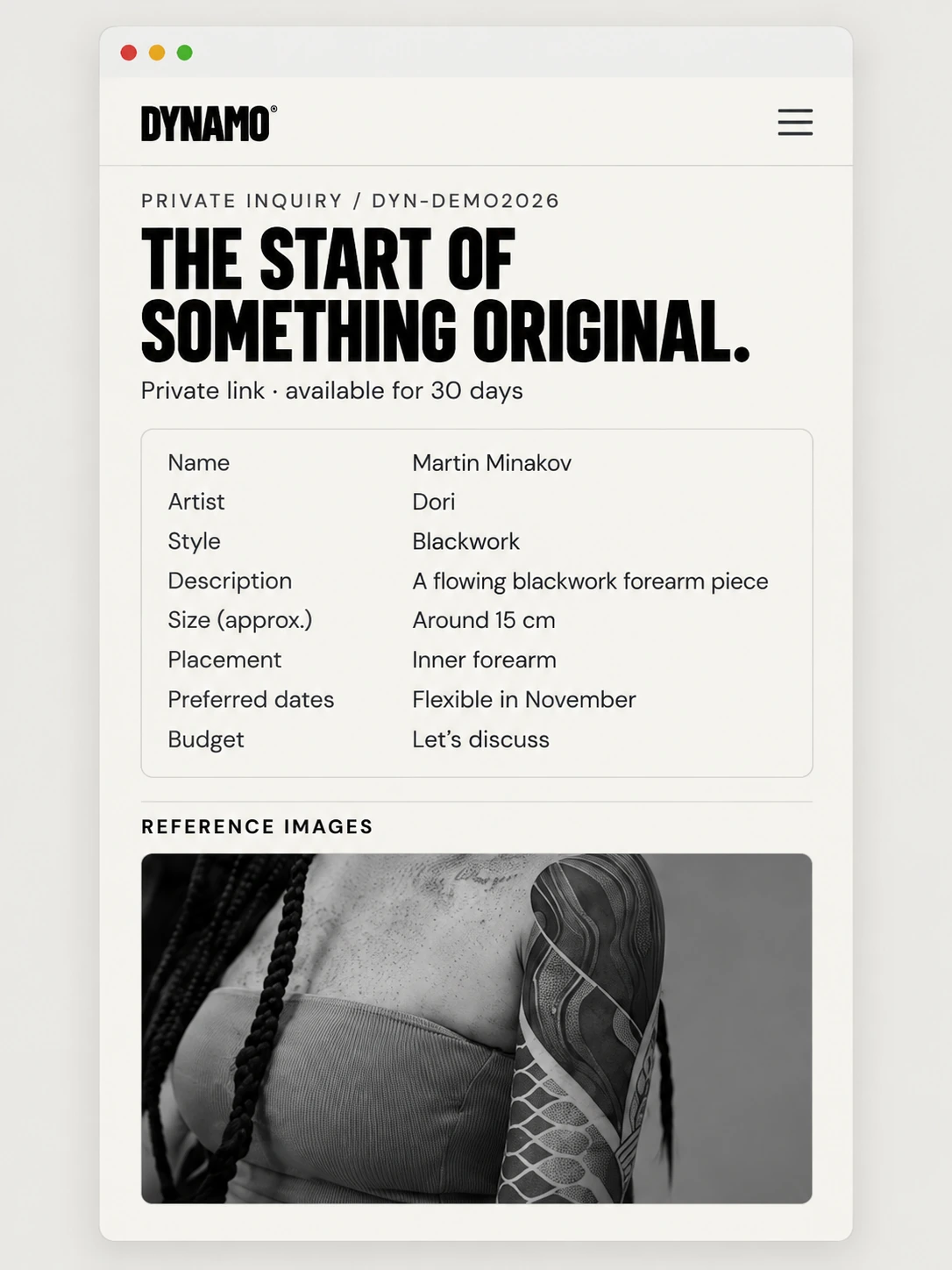
The shared page presents the visitor’s name, preferred artist, style, concept, size, placement, dates, budget, and any notes supplied. Optional details are omitted when empty. Reference images and their filenames appear beneath the written brief.
The visitor’s phone and email stay in the WhatsApp message. They are not displayed on this page, which concentrates on the tattoo idea and its practical context.
Why it looks this way
“The start of something original” continues DYNAMO’s identity into the studio-facing view. Label-and-value rows let someone inspect a detailed request without reconstructing it from scattered messages.
Keeping the reference images near the description is intended to help the studio understand what those images mean to the visitor. The page organizes context; it does not make creative decisions.
Private-link access / Checked on the page and image endpoints
Complete tokenThe long URL provides access.
Age checkThe inquiry must still be within its sharing period.
Brief + imagesThe studio reads the full context.
What “private” means here
Both the inquiry page and its reference-image endpoints verify the token and inquiry age. Anyone with the complete usable URL can view it while it remains valid. It can be forwarded; this is token-based sharing, not an employee login or role-based account system. The website’s hosting access must also allow the studio to open it.
The inquiry is excluded from the sitemap. Search directives request no indexing, following, or archiving, and image responses use private, no-store caching instructions. These controls support limited sharing without promising absolute secrecy.
Time limit / Access, not deletion
30 daysFrom creation to private-link expiry
Expiration ends access through the link. It does not necessarily delete the stored D1 record or R2 image files.
Where the system stops
Once the visitor sends the message and the studio opens the brief, the conversation becomes personal. Artist suitability, creative direction, placement, scope, pricing, dates, sessions, deposits where relevant, and eventual appointment confirmation stay with people. There is no automatic artist assignment, studio response, calendar reservation, availability check, payment checkout, email notification, or automatic pricing.